Live polls that play right over your slides.
PollSlide turns any presentation into a two-way conversation. Build questions in minutes, drop a QR code on your slide, and your audience answers from their phones — results appear instantly. This guide walks you through everything, step by step.
👋 Welcome — the 3-step idea
Every PollSlide presentation works the same way, whether it's a poll, survey, quiz, or study set.
1 · Build
Create a presentation and add questions — type them yourself or let AI draft them for you.
2 · Stamp your slide
Each question has a QR code. Drop it on your Keynote, PowerPoint, or a PDF.
3 · Go live
Present. Your audience scans the QR, answers, and results animate in real time.
Chapters and the written steps are on the getting-started page.
🗳️ Create your first poll
From a blank account to a ready question in under a minute.
- Sign in at app.pollslide.com.
- Pick a product tab — for this example, 🗳️ Polls.
- Click + New Poll. A fresh presentation is created.
- Give it a name (e.g. "Team Trivia Night") and save.
- You're ready to add questions — see below.
➕ Add a question
- Click + Add Question.
- Type your question in the question box.
- Fill in the answer options (A, B, C, D…).
- Choose a question type — single choice, multi-select, rating, word cloud, or free text.
- Mark the correct answer (for quizzes) by tapping the ✓ next to an option.
↕️ Move questions within a deck
Put your questions in the order you want to ask them. Each question keeps its QR code and link when you move it.
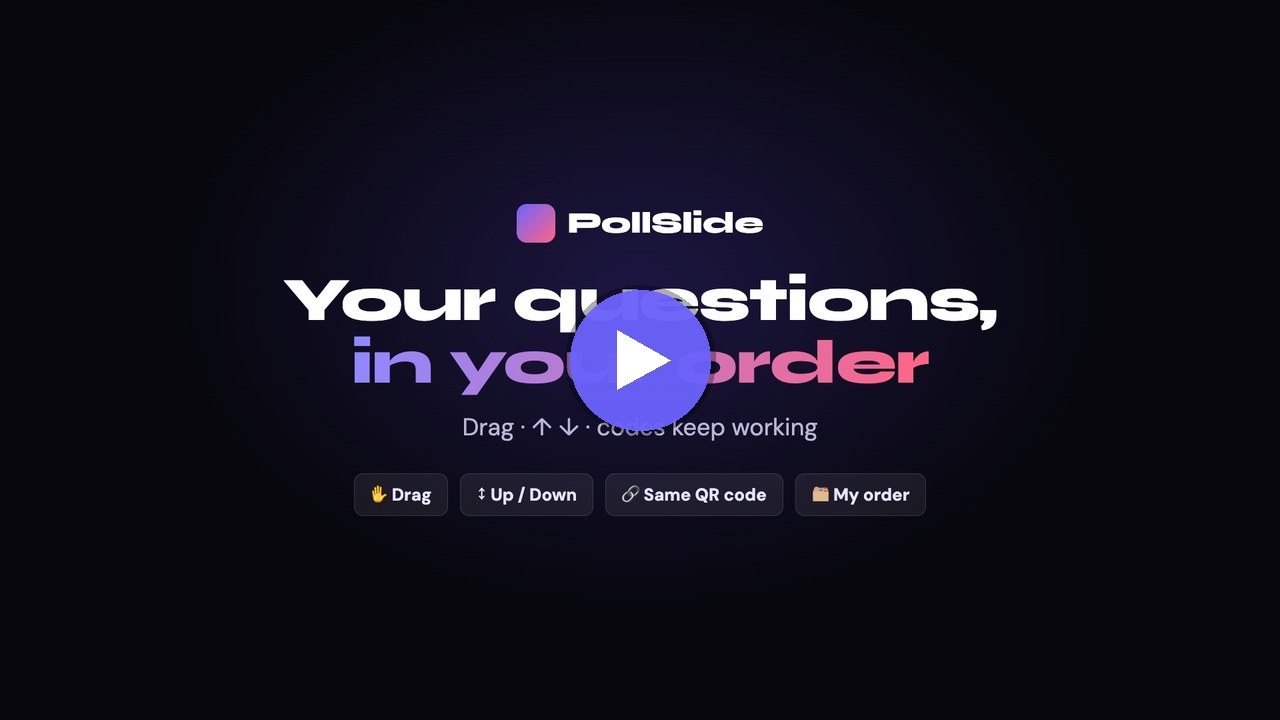
- Click the question in the list on the left.
- Click “✏️ Edit this question”.
- At the bottom of the editor, click “↑ Up” or “↓ Down”. Each click moves it one place, and the list updates straight away.
- Or, while you're editing, drag the question in the list on the left to its new place.
Your decks, in your order: choose “My order” in the sort menu above your decks, then drag them where you want them.
What happens when you move a question
- Its QR code and link still open the same question. That includes QR codes on your Keynote, PowerPoint and Google Slides slides, printed handouts, and the Mac companion. You don't need to copy anything again.
- Its number changes to match its new place. The question list, your audience's phones and your reports number questions by where they are in the deck now. A question you move from 2nd to 5th shows as “Question 5”, even if your slide still says “Question 2”.
- Answers stay with their question. Results, reports, leaderboards and exports are not affected.
- You can move questions during a live session. If you move the question that is showing, your audience stays on it and keeps what they have chosen.
- Deleting a question doesn't change the other questions' codes. Anyone who scans a deleted question's code is told it isn't available, then follows along with the next question you show.
- Slide titles you typed yourself, such as “Question 2”, don't change. Update them if you want the numbers to match.
- PollSlide LIVE (results on a PowerPoint slide) follows a moved question by itself. If you delete a question, its slide says “Question not found”: click the box, click “Change question” and choose another.
- A QR code made before 1 October 2026 opens whichever question was in its place the first time you signed in after that date. If an older code opens the wrong question, copy that question's QR code again.
- A question you copy to another deck gets its own QR code in that deck.
The video, step-by-step guide and common questions are on the moving questions page.
✨ Draft it with Polly AI
Polly is PollSlide's built-in AI. Give it a topic — or paste your notes, an outline, or a paragraph — and it writes a whole set of questions in seconds. It works for every product: polls, surveys, quizzes and study sets.
- Click ✨ Ask Polly on any presentation, or ✨ New with Polly to start a brand-new one from scratch.
- Type what you want — e.g. "5 trivia questions about the solar system" — or paste your own notes to turn into questions.
- Pick how many questions (1–30) and, for images, a style.
- Polly drafts the questions, options, and correct answers. Edit anything before you go live.
🗳️ Any product
Polly matches what you're building — opinion polls, multi-question surveys, graded quizzes with correct answers, or flashcard study sets.
⚡ Fast & private
Polly runs on PollSlide's own servers first for speed, with a cloud fallback. Your prompts are used only to draft your questions.
🖼️ Add an image with AI
- Open a question and find the image row.
- Click ✨ Generate with AI — PollSlide creates an image from your question text.
- Pick a style (Illustration, Realistic, 3D, Cartoon, Minimal, Watercolor).
- Prefer your own? Click ⬆ Upload or paste an image / GIF / video URL.
- Use the S / M / L / ⛶ buttons to size the media on the slide.
⛶ Present
Present mode shows your question full-screen with a QR code your audience scans to answer.
- Click ⛶ Present on any question.
- Your audience points their phone camera at the QR code — no app needed.
- Watch responses roll in live. Switch chart styles anytime.
- Use 📋 Copy QR box for slide to paste the QR straight onto your own Keynote / PowerPoint / any deck.
📱 No phone to scan the QR? No problem.
Anyone on a laptop (or any browser) can join without scanning: they go to pollslide.com/join and type the code shown next to your QR. Same session, same live results.
So your audience always has both options, add this line under the QR on your slide:
📱 Scan the QR — or go to pollslide.com/join and enter code ABC123
In the app, the Share / QR window has a “Copy this line” button that fills in your real code for you.
📊 Post-reveal & results
When you reveal the answer, PollSlide celebrates with leaderboards, podiums, insight chips, and confetti.
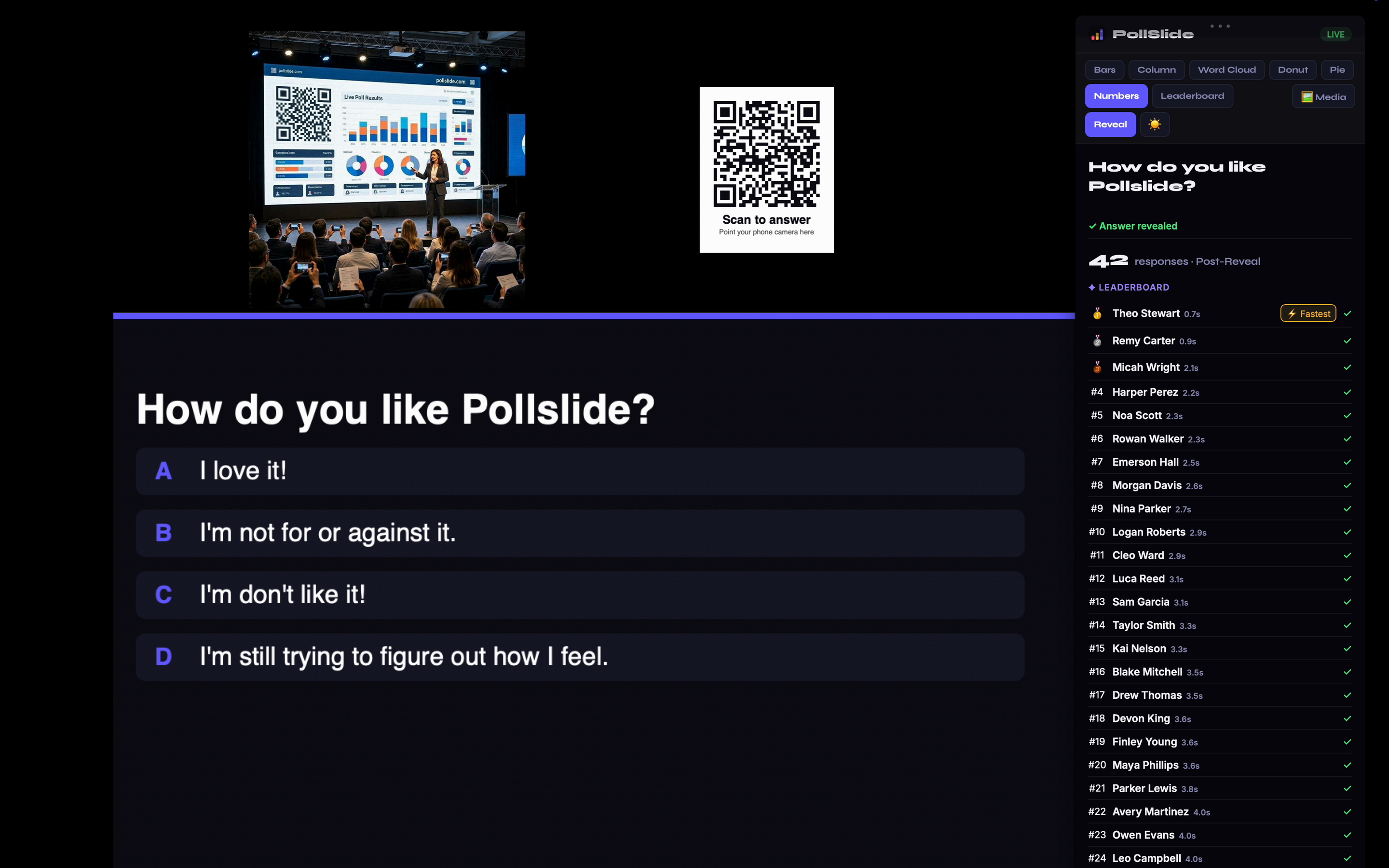
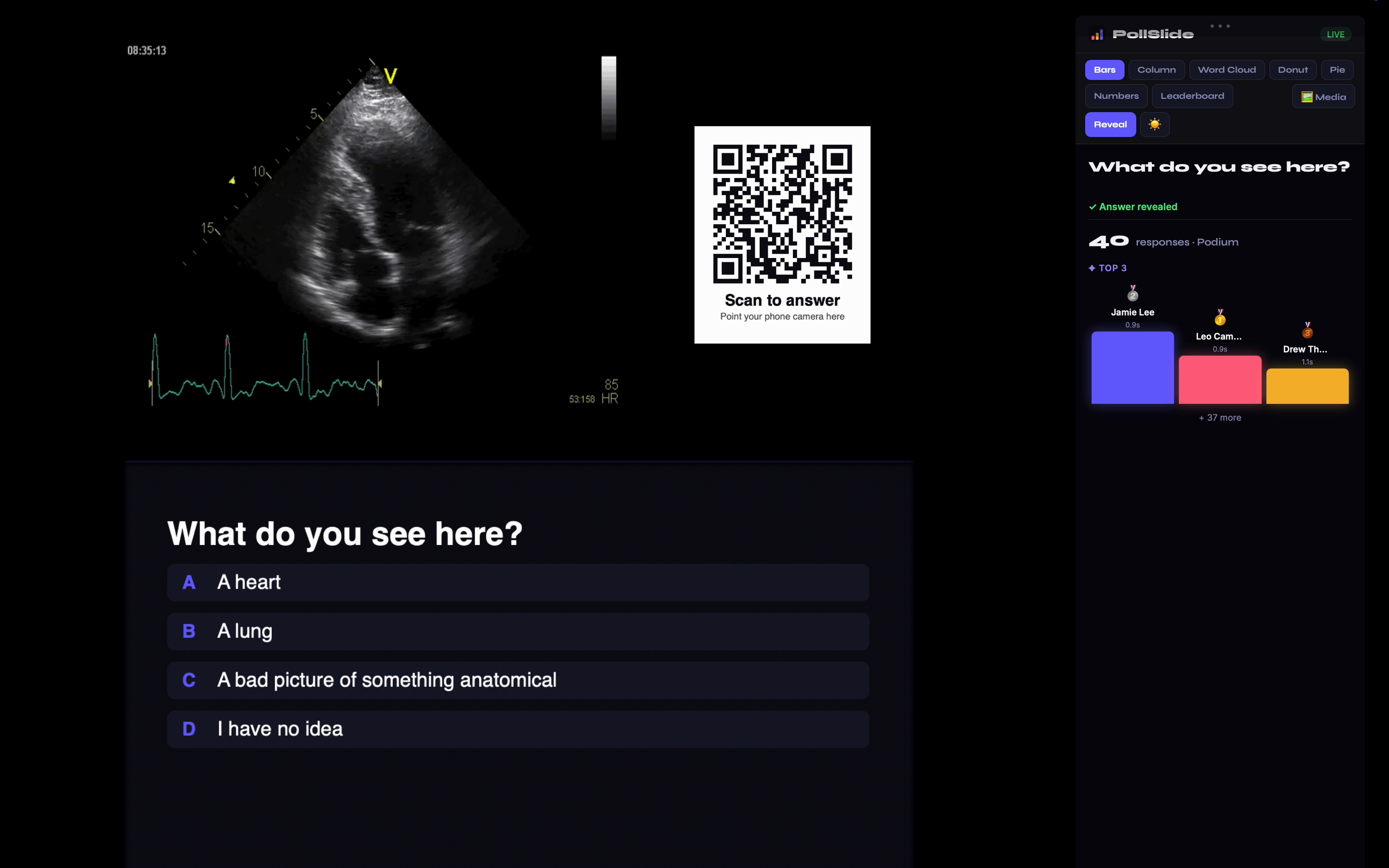
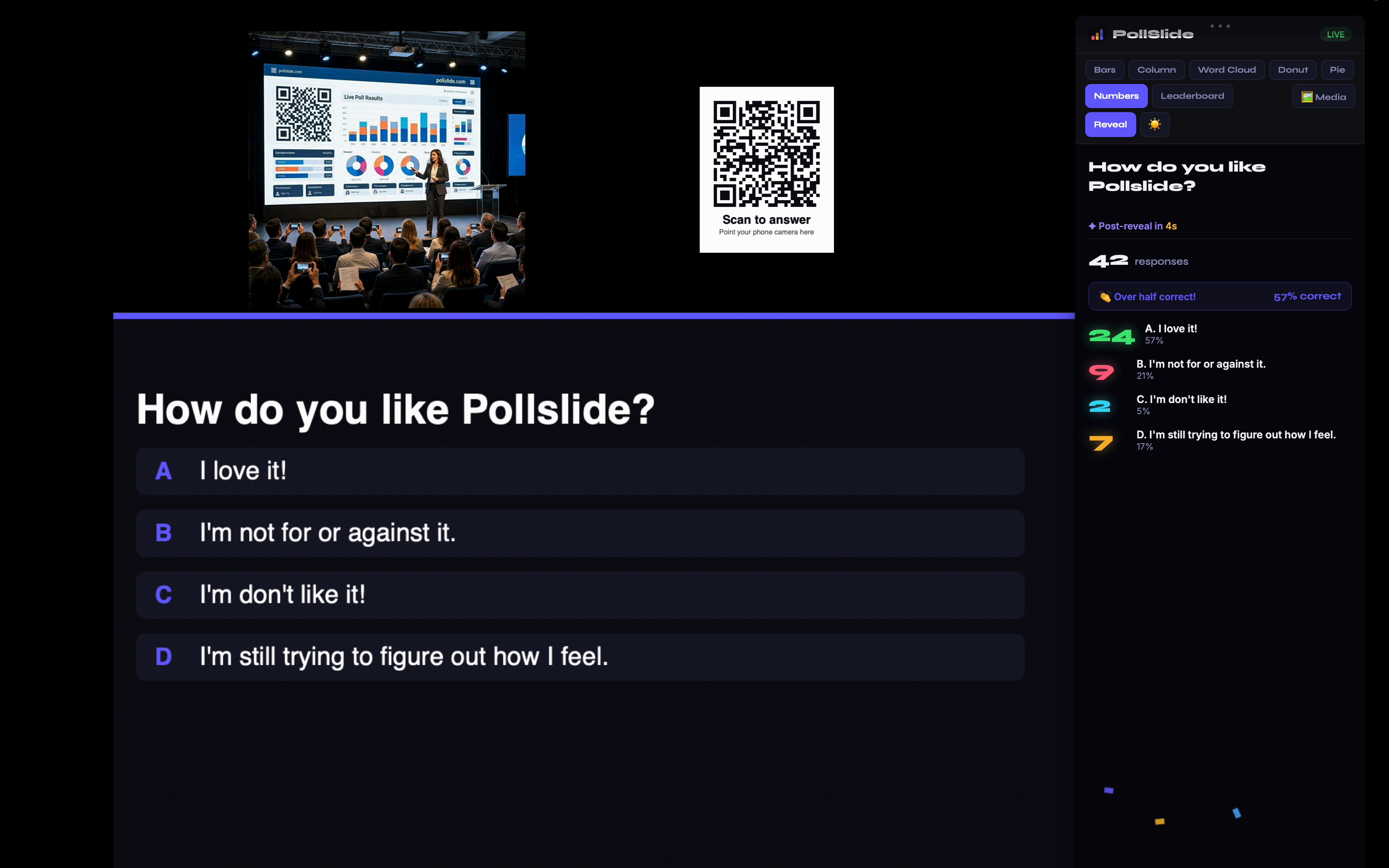
- In the editor, choose a post-reveal style: Leaderboard, Podium, Scorecard, or an Explainer / Did-you-know card.
- Set how long after the first answer to auto-reveal (or reveal manually).
- Add optional explainer text shown after the reveal.
- Turn on auto-advance to flow to the next question hands-free.
🎉 Reveal live
- Click Reveal now (or let the timer auto-reveal).
- The correct answer highlights in green; results lock.
- The leaderboard / podium appears with names and response times.
- Advance to the next question and keep the momentum going.
- Every phone shows Correct, Partly right or Not quite, with the right answer — from PollSlide or the Mac companion.
- Reset the tally and the reveal clears everywhere too: your screen, the Mac companion, the big screen and every phone.
📊 Results, reports & export
Every response is saved. Review results live during your talk, or come back to them any time afterward — and take the raw data with you.
- During a session, watch results update live — bars, donuts, word clouds, leaderboards and podiums.
- Open 📊 Report on any presentation for the full Response Report: totals, per-question breakdowns, and per-participant answers.
- Click ⬇ CSV to export everything to a spreadsheet — great for grading, analysis, or your records.
- Running the same quiz more than once? Every reset is saved with its date, so past sessions never disappear.
🖥️ Big screen
Click 🖥️ Big screen to open a clean, full-screen results view for a projector or second monitor — no companion app needed.
🔒 Your data
Exports are yours to keep. Delete a session or your whole account any time — see Your data & privacy.
✨ AI Insights — read the room
When your audience answers an open-text question, Polly can read every response and show you the themes, the mood, and a one-line summary — instantly, on your results panel. Perfect for "What's on your mind?", "One word for today", or any free-form question.
- Run any open text or word cloud question and let answers roll in — you need at least 2.
- On your live results panel, click ✨ AI Insights.
- Polly returns a summary, an overall sentiment bar (positive / neutral / negative), and the top themes — each with a count and a real example quote.
- Click it again any time to re-analyze as more answers arrive.
🧠 Themes, not noise
Hundreds of replies become a ranked list of what people actually said — grouped, counted, with an example each.
🔒 Private & included
Polly analyzes on PollSlide's own servers first — not shipped to a third-party AI cloud — and it's included in your plan.
📊 Works in your Report too
The same ✨ AI Insights button sits on every open-text question in your Report — so you can analyze feedback and survey answers long after the session ends.
📚 Study it yourself — and make it a game
StudySlide isn't only for handing out to a class. If you bought PollSlide to learn something yourself, you can turn any deck into flashcards and revise it with spaced repetition, a daily streak and four study modes — including two built like game shows.
- On a study set, open the “⋯” menu at the top and choose “📚 Study now”. It opens straight into your own cards. No link to copy, no sharing required.
- Got a quiz or poll instead? Click 📚 Study this deck and PollSlide turns every question into a flashcard (question on the front, correct answer on the back).
- You land on your study home: your streak, how many cards are due, and a mastery bar.
- Pick how you want to study today — then just keep coming back. The scheduler decides what you see next.
🎯 Review
Flip cards and rate yourself Again / Hard / Good / Easy. Proper spaced repetition schedules each card for the moment you're about to forget it.
⚡ Beat the Clock
Sixty seconds, as many cards as you can get right, and a personal best to beat. Perfect when you've only got two minutes.
🪜 Climb the Ladder
Ten rungs of rising stakes with two lifelines and safe havens — bank your progress or risk it for the top. Game-show tension, real revision.
🎲 Pick-a-Card Board
Choose squares from a board. The high-value squares are quietly the cards you know least well, so the game steers you at your weak spots.
🔥 Daily streak
Study anything, any set, and your streak grows. Miss a day and it resets — which is exactly why it works.
🏆 Mastery bar
Every card moves Learning → Familiar → Mastered as it survives longer gaps. Watching the bar go green is the point.
🔁 LoopSlide — games for TVs and venue screens
LoopSlide plays your questions on a TV, over and over, with nobody presenting. People scan the code on screen, play on their phones and compete on live leaderboards. Between questions it can show your offers, announcements, photos and videos.
- Open 🔁 Loops from the product tabs in your dashboard (or go to app.pollslide.com/loop) and click + New loop.
- Add a round and write your questions — or click Import a PollSlide deck to bring in any poll, quiz, survey or study set. Study flashcards become multiple-choice questions.
- Add media cards or sponsor cards between questions. Each can have an image, a GIF or a muted video, and a link that shows as a scannable code.
- Choose the timing, how points work and when the leaderboard resets, then fill in Rules & compliance and click Publish.
- On the TV's web browser, go to pollslide.com/tv. Scan the code it shows with your phone and pick your loop. That's it — it runs on its own. Step by step
⚡ Points
A right answer earns 500 points plus up to 500 more for speed. Answers in a row multiply the points, up to double. Questions with no right answer give everyone 100 for taking part.
🏁 Leaderboards
Each round ends with its own leaderboard. If a loop has several rounds, it finishes with the overall leaderboard.
🗓️ When scores reset
Every time the loop starts again, every day, every few days, or never. Answers are deleted automatically once their leaderboard is over.
😀 Emojis and media
Use emojis in questions and answers with the 😀 button, add a photo, GIF or video to any question, and give each answer its own picture.
📺 Many screens
Open the same screen link on as many TVs as you like. Every screen shows the same question at the same moment.
✨ Draft with Polly
Click ✨ Draft with Polly, type a topic and Polly writes a round: questions with emojis, “Did you know?” cards and, if you tick the box, a picture for each question. It uses your plan’s monthly Polly allowance, and everything it makes is labelled “AI-generated”.
🌐 Every player’s language
Phones show the game in each player’s language, and questions are translated automatically when you publish, labelled “Auto-translated”. Choose the TV’s language under Basics, or let it follow the TV. Answers and scores are the same in every language.
🖼️ Photos, GIFs and videos
Click 🖼 Add media on any question, answer or card to upload your own photo or video (up to 30 seconds), search GIFs, or have Polly draw a picture.
⇄ Send it back
Export any round to a PollSlide poll, quiz, survey or study set, or save a whole loop as a file to share or keep.
🎮 Game extras
Switch each one on or off under 🎮 Game extras in the Studio.
- Live reactions — players tap 👏 🔥 😂 😮 ❤️ 🎉 on their phones and they float up the TV. Only these six, and a player can send one every couple of seconds.
- ⚡ Double points — once per round, a player can double what the next question earns.
- 🏅 Badges — hot streaks, perfect rounds, fastest finger, podium, crown and day streaks. The count shows next to the player's name on screen.
- 👥 Table vs table — list your team names; players pick one when they join, and the leaderboards show teams beside players.
- 🎁 Reward for the top players — the top places see your reward and code on their phones, with their name and a live clock to show staff. It is a prize, so add your official rules.
- 📣 Share my rank and 📅 day streaks are always on: players can share a card with your QR on it, and are nudged to come back tomorrow.
📺 Putting LoopSlide on a TV — no computer needed
You only ever type one short address on the TV. Everything else happens on your phone.
- On the TV, open its web browser and go to pollslide.com/tv. The TV shows a 6-letter code and a QR code.
- Scan the QR with your phone's camera and sign in. (No phone handy? On any computer go to pollslide.com/loop → 📺 Screens and type the code.)
- Pick the loop to play, give the screen a name like “Bar TV”, and tap Pair.
- The TV starts playing within seconds. Press OK on the remote on Full screen if it isn't already.
From then on you never touch the TV again. Switch loops, rename or unpair it from 📺 Screens. The TV remembers it is paired, even after a power cut.
Which TVs work
Samsung smart TV
Open Internet from the Apps menu, go to pollslide.com/tv.
LG smart TV
Open Web Browser from the home menu, go to pollslide.com/tv.
Amazon Fire TV / Fire TV Stick
Open Silk Browser (download it from the Appstore if it isn't there), go to pollslide.com/tv. The easiest option if your TV has no browser — a Fire TV Stick costs about $30.
Google TV / Chromecast with Google TV
No browser comes installed. Install one from the Play Store (search “browser”), then go to pollslide.com/tv.
Signage players
Yodeck, ScreenCloud, OptiSigns, BrightSign and most others have a “web page” or “URL” app. Point it at https://app.pollslide.com/tv, then pair as usual.
Roku and Apple TV
These have no web browser, so they can't show LoopSlide. Plug a Fire TV Stick into a spare HDMI port instead.
Keeping it running all day
- Turn off the TV's sleep timer, auto power off and eco / energy saving settings. LoopSlide keeps the browser awake where it can, but the TV's own power settings win.
- If the power or Wi-Fi drops, the screen picks up again at the right question when it reconnects.
- Changes you publish reach every screen within a few seconds — no need to touch the TV.
- Want several TVs? Pair each one. Every screen showing the same loop is on the same question at the same moment.
If something isn't working
- “No TV is showing that code right now” — the code changes every 10 minutes. Type the one the TV shows now.
- The TV keeps asking to be paired — its browser isn't keeping settings, often because of a private or guest mode. Turn that off, or use a Fire TV Stick.
- You want to hand a TV to someone else — unpair it in 📺 Screens. The TV goes back to showing a code.
- The TV is black or stuck — close the browser and open pollslide.com/tv again. It stays paired.
- The TV says its browser is too old — LoopSlide needs a smart TV from about 2018 or newer. On an older TV, plug in a Fire TV Stick and use its Silk browser.
Rules & compliance
A screen in a public place has to be safe to leave running, so LoopSlide asks for a few details before you publish:
- Who runs it and a contact email. Players see these before they play, with a way to report a problem.
- Sponsor names. Sponsor cards are always labelled as sponsored and say who they are from. Turn off “Sponsored” for your own announcements.
- AI labels. Tick “Made with AI” on anything Polly or another AI tool wrote or drew. Questions you import from Polly are labelled for you. The label shows on the screen and on phones.
- Age limit. Set 18+ or 21+ for bars, and players confirm their age before they join.
- Prizes. If you offer a prize, add a link to your official rules. Play never needs a purchase. You are responsible for your own promotion's rules where you are.
- Players. Nicknames are filtered for offensive words, and Players & moderation lets you remove anyone from the board in one tap.
🎮 Game modes — pick how your quiz plays
When you hit Present, PollSlide asks how you want to run it. Classic works exactly as it always has. The other four change how points are scored and what the big screen celebrates — same questions, completely different energy in the room.
- Build your questions as normal, then click ⛶ Present.
- Pick a mode in the How do you want to run this? box. Classic is already selected, so hit Start presenting if you just want the usual.
- Everyone's phone shows what's at stake, and the big screen calls out the drama as each answer is revealed.
- You can switch modes between rounds — start Classic, finish on Survival for a grand finale.
🎯 Classic
One point per correct answer, you reveal when you're ready. Exactly how PollSlide has always worked — nothing changes. Best for: any audience.
⚡ Speed round
The faster you answer correctly, the more you score — up to double points for the quickest. The reveal crowns a Fastest Finger. Best for: parties and lifting a flat room.
🔥 Streak
Correct answers in a row build a multiplier up to 3×, with flames that grow as you go. One miss resets it. Best for: classrooms and training — it rewards consistency.
💀 Survival
One wrong answer and you're out. Knocked-out players keep watching, and the screen counts down who's still standing. Best for: a dramatic final round.
🎲 Wager
Before each question players bet Safe (1×), Risky (2×) or Bold (3×). Get it wrong and it costs you. Best for: pub-quiz joker rounds and comebacks.
📈 Everyone can see they're moving
Whatever the mode, the leaderboard shows ▲ and ▼ arrows as people climb and slip — so the room feels the race, not just the scores.
👥 Team play (pub-quiz mode)
Turn any quiz into a proper pub quiz: the audience answers as teams at their tables, and the leaderboard ranks teams instead of individuals. Everyone still answers on their own phone — the scores just add up per team.
- Open the presentation, press “▶ Present”, then “Present here”. Under “Players”, choose “👥 Teams (pub quiz)”. You can also switch it in the “⋯” menu at the top, where it reads “👥 Teams: Off”.
- Present as normal. After people type their name, they see a Join a team screen.
- The first person at a table taps Create team and names it ("The Quizzly Bears"). Everyone else on that table sees it in the list and taps to join.
- Anyone who'd rather play alone taps Play solo — they still appear on the leaderboard as themselves.
- Your leaderboards, podium and Final Results now show team standings.
⚖️ Big teams don't win by default
A team's score is the average of its members, so a table of six has no advantage over a table of two. It rewards knowing the answers, not recruiting.
📱 One phone each
Everyone answers on their own phone — no passing a single device around, and everyone gets the questions in their own language if they need to.
🔀 Latecomers are fine
Turn team play on at any point. Anyone already in gets the team screen next time they answer, and people can join a team late.
🎪 Waiting-room warm-up
Instead of a static "waiting for the presenter" screen while people trickle in, the big screen can run light-hearted trivia — so the room is entertained (and looking at your join code) before you've even started.
- Press “▶ Present” and choose “🖥️ Big screen”: the projector view with the join code and QR. It is also in the “⋯” menu at the top.
- Warm-up trivia appears automatically underneath the join banner while you're waiting.
- Questions rotate on their own — each shows for a few seconds, reveals its answer, then moves on.
- It disappears the instant you launch your first real question.
- Don't want it? Click 🎪 Warm-up: On in the bottom corner to switch it off — that screen remembers your choice.
🚫 No spoilers
Warm-up questions come from a built-in general-knowledge set — never from your deck — so nothing in your actual quiz is given away.
👀 Keeps the code on screen
The join link, code and QR stay visible above the trivia, so latecomers can still get in while everyone else plays along.
⚡ Zero setup
Nothing to configure and no AI needed — it works even if your internet or AI service is having a bad day.
🎯 Polly Live Co-pilot
Mid-session, Polly can read how your audience just answered and suggest a follow-up question that responds to it — which you can put on screen with one click. It's like having a co-host who noticed the room split 60/40 and knows what to ask next.
- Launch a question and let a few answers come in (you need at least 3).
- On your live results panel, click 🎯 Suggest a follow-up.
- Polly reads the actual responses and offers 3 ready-made questions, each with four options, the correct answer marked where there is one, and a short note on why it's suggesting that one.
- Pick one: ⚡ Add & launch now puts it live immediately, or + Add to deck saves it for later.
- Not useful? Close it. Nothing is added or launched unless you choose it.
🧭 You're always in control
Polly never launches anything by itself. Every suggestion is a proposal you accept, edit later, or ignore.
🔒 Private & included
Like AI Insights, this runs on PollSlide's own AI first rather than a third-party cloud, and it's included in your plan — not charged per use.
🛟 Never blocks your session
If the AI can't be reached, you get a calm "unavailable right now" message. Your questions, results and reveal all carry on exactly as normal.
🎁 Shareable session recap
When a session ends, build a recap page in one click and send the link to everyone who took part — the winner, the question that fooled the room, and the highlights. Great for "same time next week?" and it works long after the session is over.
- After the session, open the “⋯” menu at the top and choose “🎁 Share recap”.
- The report opens for that presentation and builds the recap by itself.
- You get a link — Copy link to send it round, or Open recap to see it first.
- Anyone with the link can open it. No sign-in, no app, works on any phone.
🏆 The bits people care about
Winner (or winning team), leaderboard, how many took part, the toughest question, and a question-by-question breakdown.
✨ With a summary when it fits
If your session had written answers, Polly adds a one-line "in a nutshell" summary. If the AI isn't available, the recap still publishes with every stat intact.
🔗 Link-only, and yours to delete
The page is only reachable by its unguessable link — it isn't listed or searchable. It shows the display names people chose during the session.
📁 Folders, search & pinning
Once you've built more than a handful of projects, finding the right one matters more than making the next one. Folders group a whole lesson together — whatever mix of products it contains — and search looks inside your questions, not just their titles.
- In the left panel, the ribbon under the product tabs shows where you are: 📁 All › Biology 101 › Unit 3. Every step is clickable.
- Click 📁 New folder at the bottom to create one. Folders go two levels deep — enough for Course › Unit without ever getting lost.
- To file something, open a deck's ⋯ menu and choose Move to folder… — or tick several with ☑ and move them all at once.
- Anything you create while inside a folder is filed there automatically.
- The All tab shows every product together. The Poll / Survey / Quiz / Study tabs now filter whatever folder you're in, rather than sending you to a separate screen.
🔍 Search finds questions, not just names
Type a word from inside a question and it finds the deck — from any folder, and it tells you which one it's in. You don't have to remember where you filed it.
★ Pin what you run weekly
Pinned decks sit at the top no matter how you're sorting. Perfect for the warm-up you use every Monday.
📦 Archive, don't delete
Put last term away without losing it. Archived decks leave your lists but keep every answer, and come back whenever you want them.
🤝 Build a deck together
Two people editing one deck, live. Use it when you're writing a quiz with a colleague rather than handing one over — and it works whether or not you share a team, a workspace or a plan.
- Open the deck's ⋯ menu and choose 🤝 Build it together…
- Enter their email address and send the invite. They accept under 📥 Shared with me.
- The deck appears in their list marked shared. It stays in your library — they're working on your copy, not a duplicate of it.
- A strip above the deck list shows who else is in the deck right now.
- When one of you opens a question, it's marked in the other's list so you can't type over each other. Work on different questions and you'll both see the changes appear.
👑 You stay the owner
The deck never leaves your library. Collaborators can edit its questions, but they can't delete it, archive it, or file it into their folders.
🚫 Ending it is instant
Open 🤝 Build it together… and remove them. Access is checked on every single change, so it stops immediately — even if they have the deck open.
🚪 They can leave too
A collaborator can step away whenever they like. Nothing is deleted, and you can invite them back.
👥 Your team's library, usage and bulk tools
Three tabs inside Team admin, for teams on a Team plan. Open your avatar menu and choose Team admin.
- Library: add one of your decks, or a single question, so everyone on your team can use it.
- Anyone on the team can press Use this deck to get their own copy, or Add to my deck to drop a question into the deck they have open.
- Usage: owners and admins see how much each member uses PollSlide, with decks built, decks run live, responses and people reached.
- Bulk tools, on Team Large: paste a whole list of emails, check it, then send every invite at once.
- You can also resend or revoke every pending invite, remove several members together, and download the member list.
📚 A copy, never the original
Using a deck from the library gives you your own copy with its own QR code and results. Nobody's edits or answers ever mix, and the person who added it keeps theirs untouched.
🔒 Counts, never answers
Usage shows totals for each member. It never shows what anyone in an audience answered, and never an audience member's name.
📈 The org-wide view
Team Large adds a 90-day trend, your most-answered decks and a CSV export. Team Small sees the last 30 days.
📈 How a student is doing over time
Every other view answers "what happened in this session". This one answers the question you actually have: is this student getting it?
- Open Reports and choose Progress over time.
- Each student gets a row: how many sittings, their average, their best, their most recent, and a small line showing the shape of it.
- Worth a look at the top lists who to check on — not a ranking of your own class.
- Hover any row to see the reasoning behind its trend.
⏳ Two quizzes is not a trend
Below three sittings it says not enough yet rather than guessing a direction. A line through two points is just a line, and "declining" is a word that reaches a parents' evening.
📊 A small wobble is "steady"
Scores bounce by ten points for reasons that have nothing to do with learning — a late night, a noisy room. Only a move bigger than that is called a direction.
🔗 It needs a class
Without one, students are matched on the name they typed, so a different spelling splits one person's history in two. Assign the deck to a class and it follows the person.
📶 Answers survive bad wifi
Thirty phones on school wifi is the most ordinary thing in the world, and it used to be the one thing that could lose an answer. It can't now.
- A student taps Submit and the connection is down.
- Their phone says: "No connection — your answer is saved and will send automatically."
- It sends itself the moment the connection returns — even if they closed the tab and came back.
- They see "✓ Sent" when it lands.
⏱ The time that counts is when they tapped
Not when it arrived. A student is never marked down for the school's network. The delay is recorded separately so you can see what happened.
👀 You can see which ones were late
An answer that was stuck shows as sent late in your report and in the CSV, with how long it waited. You judge it; the software doesn't decide for you.
🔔 If it truly fails, nobody is left guessing
After repeated attempts the student is told to tell you, and it's recorded on our side too. An answer is never dropped in silence.
🌐 Your audience's language
You write each question once. Every phone reads it in its own language.
- Each phone shows your questions in the language it is set to, translated automatically.
- Questions and answer options translate into 11 languages: English, Spanish, German, French, Portuguese, Italian, Dutch, Japanese, Chinese, Arabic and Hindi.
- The phone’s buttons, the PollSlide app and this website come in the same 11.
- Anyone can pick another language with the globe at the top of their screen, and the phone remembers it.
- One tap on “See original” shows the question exactly as you wrote it. One more tap switches back.
🔒 Keep a question in its original language
For wordplay, a spelling test or a language lesson, open the question in the editor and tick “Keep in original language”. Every phone then shows it exactly as you wrote it.
🖼️ Your media comes along
Images, GIFs and video on the question and on each answer show on every phone, whatever language it is reading in.
💬 Read answers in your language
People answer in their own language. You read what they typed in yours.
- Ask an open question, or let people send you questions. Their words arrive exactly as they wrote them.
- Click “Translate answers” above the list. A translation appears under each answer, in the language your PollSlide is set to.
- The original always stays above the translation, so you can check a word that looks odd.
- New answers are translated as they arrive.
- Answers that are already in your language are left as they are.
🔒 Only on your screen
Translations of what people typed are shown to you alone. They are never put on the projector or on anyone’s phone.
🤖 It is automatic translation
Treat it as a good first reading, not a certified one. Names, slang and jokes can come out wrong, which is why the original is always there.
📊 Read your report
After a session, the report tells you what happened and what to do next.
- Open a deck and click Report. It opens on the overview.
- Read the four numbers: who took part, the average score, the hardest question and who is worth a conversation. Click any of them for the detail.
- Look at the marker beside each question. Each one says in a sentence why it is there.
- To see two sessions of the same deck side by side, open “Compare sessions”.
- To hand someone a one-page version, click “Print summary”. Tick the box to leave names off.
Answers in your language
Typed answers can be translated on the report too, with the original above each one.
🖥 Live results on a PowerPoint slide
PollSlide LIVE is our PowerPoint add-in. It puts a question’s live results on the slide itself.
- In PowerPoint, open the Insert tab, choose Add-ins and search for PollSlide. Add PollSlide LIVE.
- PollSlide LIVE appears on your slide as a box. Sign in with your PollSlide account, then pick your presentation and the question this slide should show.
- People still need a way in: in PollSlide, open the same question and click “Copy QR box for slide”, then paste it onto the slide, next to the results.
- If the question has a picture, a GIF or a video, add it to the slide too, the same way you add any picture in PowerPoint.
- Start your slide show. The bars move as the answers arrive, and “Reveal now” shows the right answer.
Watch: live results on your PowerPoint slide
Use one box for each question. Each slide can show a different one.
🎞 GIFs, without the hunting
You could always search for a GIF and drop it in. Now you can let PollSlide draft them for a whole deck, and just review what it picked.
- Open a deck's ⋯ menu and choose 🎞 GIFs.
- Tick fill each question's media box, fill every answer's media box, or both.
- Press Find GIFs. Each one appears with the question it belongs to.
- Keep, reshuffle (↻) or remove (✕) any of them before you present.
🔍 It reads the question, not the sentence
"Which app do millennials blame for ruining dating?" searches for app millennials dating. Searching the whole sentence returns nothing useful.
🙈 Every choice, or none of them
A picture on the right answer and nothing on the others is a giveaway the moment they're on screen. So every option gets one. An answer that can't be pictured — 42, or B — gets a neutral reaction rather than a celebration, because a celebration on a wrong answer is a hint too.
🛡 Safe search is not a setting
It's locked on our servers where nobody can change it, and every search is logged. This gets projected in front of a class.
🎤 Atmosphere — how the wait feels
Between launching a question and revealing the answer there's a gap, and what fills it should depend on the room. A quiz night and a board meeting want opposite things, so you pick.
- Press ▶ Present. The dialog that asks how you want to run it now has an Atmosphere row.
- Choose 🌿 Calm, 🎓 Classroom or 🎤 Game show.
- Press ▶ Start presenting. Your choice is remembered for that deck.
🌿 Calm
No sound, no clock drama — the results simply appear. Board meetings, webinars, libraries, anywhere a noise would be rude. This is the default.
🎓 Classroom
You hear the room answering and the last five seconds are unmissable, but nothing ticks at you. Suits most lessons and training.
🎤 Game show
A ticking clock that speeds up as it runs out, answers landing audibly, and a held beat before the reveal. Quiz nights, conferences, a finale.
👥 Class lists — one record per student
Give a class its list of students once, and every deck you assign to it records who answered by person — not by whatever they typed that day.
- Open a deck's ⋯ menu and choose 👥 Assign to a class…, then + New class.
- Give it a name — “Biology 101, Period 3” — and paste your list. One name per line, or paste a column straight out of a spreadsheet.
- Press Save. You'll see exactly who was added.
- Back in the class list, press Assign to attach this deck to that class.
- Students now pick their name from a list instead of typing it.
📋 Paste it however you have it
Ruiz, Ana is turned into Ana Ruiz. A header row like Student Name is ignored rather than becoming a student. The same person listed twice becomes one. Extra columns — email, year group — are left alone.
🔗 The record follows the student
Not the phone. Answer two questions on the school Chromebook and finish on your own phone and it's still one student with one score. Clear the browser, use a different device, spell your name differently — the record holds.
🚪 Leaving isn't deleting
Re-paste an updated list and anyone no longer on it is marked as having left, never erased — their earlier work stays attached to them. If they come back, they get their original record, not a new one.
🔐 Making sure it's really them
A list of names lets a student pick their own — and, without something more, lets them pick somebody else's. Choose how your class proves who they are.
- Open 👥 Assign to a class… → Students on the class you want.
- Pick one of the three methods below. The class starts on PIN.
- Students are asked for it once, the first time they answer on a device.
🔢 A PIN they choose
Nothing to set up and no personal data. The student sets a 4–8 digit PIN the first time they pick their name, and needs it after that. The gap is that first claim — whoever gets there first owns the name — which you can see and clear in seconds.
🎟️ Codes you issue
PollSlide generates a code per student and gives you a printable sheet to cut up and hand out. Nobody can claim a name they weren't given a code for, and still no personal data is stored. Codes avoid 0/O, 1/I and 5/S, and can't spell a word in front of a class.
✉️ Emailed codes
The same code, sent to the student's school address — the strongest link to a real person. It's the only method that stores personal data, so it asks you to confirm your school has the right to use those addresses before switching on.
🔁 Second attempts
By default one answer is final. For a quiz you're using to find out who understood something, you can let students try again — and decide which try counts.
- Open the deck's ⋯ menu and choose 🔁 Retakes: off.
- Pick how many tries: 2, 3 or 5.
- Pick which attempt is graded — best, last or first.
- Students who've answered now see what they said, how many tries are left, and which attempt counts.
🏅 Best attempt
The usual choice. The point of a retake is to let someone show they've got it now, and a later worse answer never pulls their grade back down.
🕐 Last attempt
When the most recent answer is where their understanding actually stands — a revision round, or a set they're working through repeatedly.
1️⃣ First attempt
The retake is recorded for you to look at, but the original is what's graded. Students are told this before they try again, so nobody wastes a go on a promise the deck won't keep.
🎓 Gradebook export
One row per student, one column per question, a score on the end — the shape your gradebook already has, and the shape Google Classroom and Canvas import.
- Open Reports.
- Choose one presentation in the filter — a gradebook is one deck's marks.
- Press 🎓 Gradebook. The file downloads, and PollSlide tells you what it contains and anything it left out.
- Import it into Classroom or Canvas, or open it in Excel, Numbers or Sheets.
⬜ A blank is not a zero
A student who never answered and a student who answered wrongly are different facts. Missing answers stay blank and don't count against anyone; a wrong answer is a 0. The Answered column shows the difference at a glance.
🧮 Only what's actually graded
A reflection prompt with no correct answer isn't part of a grade, so it doesn't become a column of blanks you'd have to delete. You're told how many were left out and why.
⤓ Two different exports
⤓ Answers gives you every response, one row each — for reading what people actually said. 🎓 Gradebook gives you the marks. Both are plain CSV that opens anywhere.
👁 Know if someone leaves the screen
For a graded quiz or a study set, you can be told when a student switches away from PollSlide — and they're told too, the moment it happens.
- Open the deck's ⋯ menu and choose 👁 Screen-leaving: not tracked to switch it on.
- Anyone answering now sees a short message on their own screen if they leave: “You left the screen — your teacher will see this.”
- Their answer records how many times they left that question, and for how long.
- It's counted per question, so you can see which one they left on — not just that they left at some point.
- Turn it off from the same menu. It's off by default on every deck.
🔓 It cannot lock their screen
No website can. A browser has no way to stop someone switching apps or opening another tab — that needs a managed device, like a school MDM or a locked-down exam browser. Anything claiming otherwise in a normal browser isn't telling you the truth.
📣 They're told, not caught
The on-screen message is the point. A student who knows it's being recorded can choose differently; one who finds out afterwards has just been trapped. That's why there's no silent mode.
🙈 It can't see what they switched to
Only that PollSlide stopped being the front window, and for how long. Never which app, site or document — a browser cannot see that, and PollSlide doesn't pretend to.
🖥️ The Mac Companion
PollSlide Companion is a free macOS app that floats your live results over any presentation — it even auto-detects the on-screen QR code and shows the matching poll. Download it free →
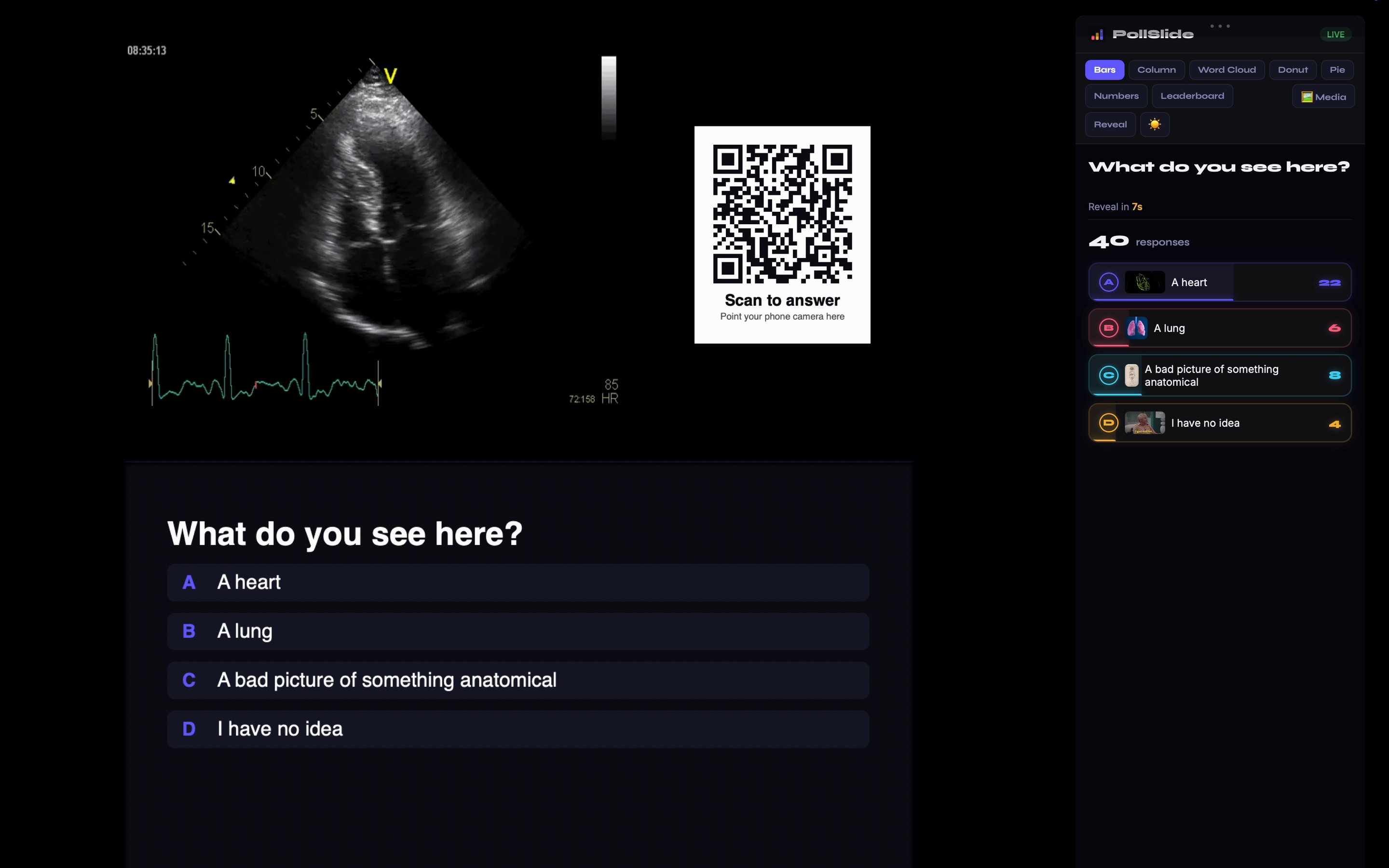
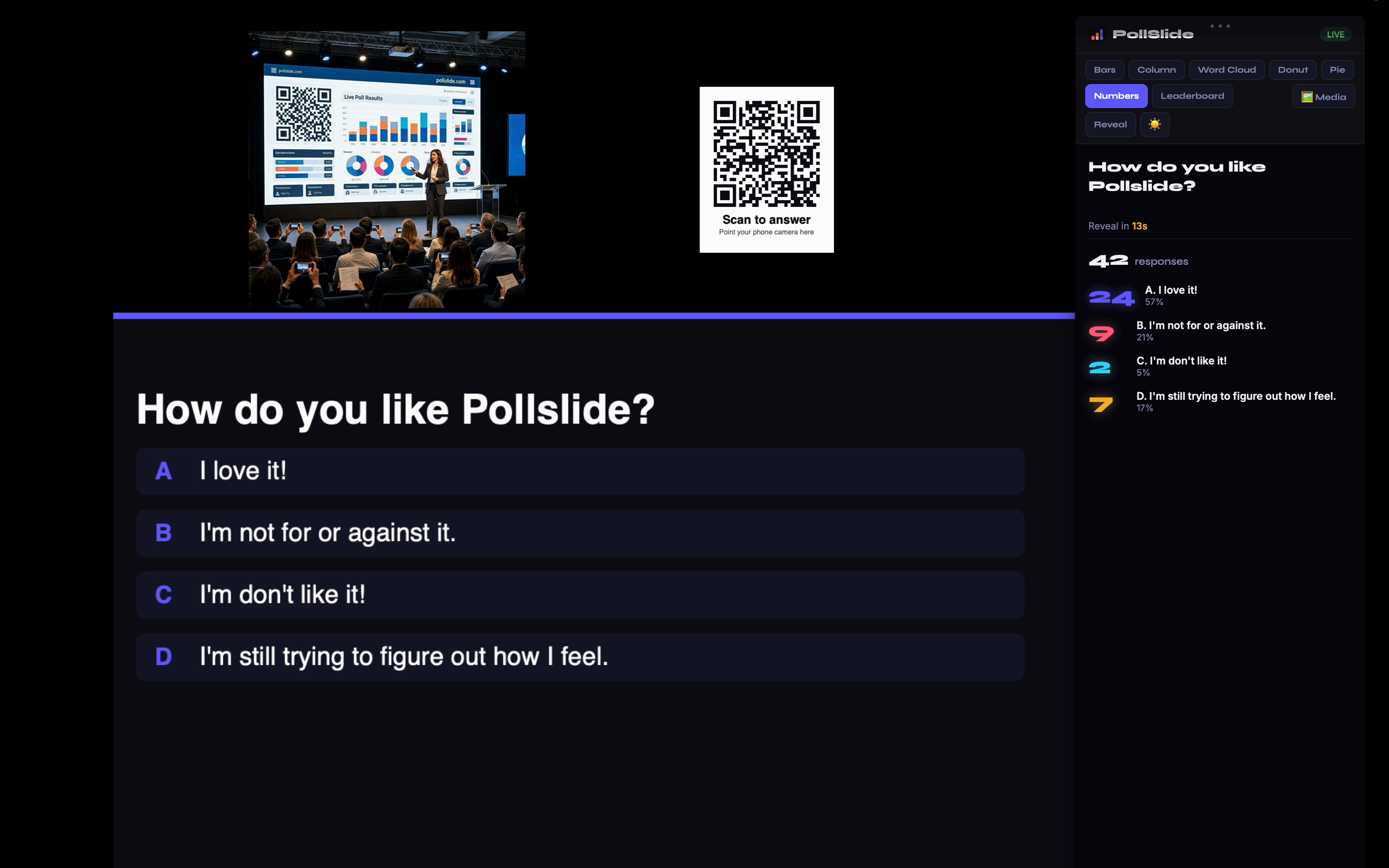
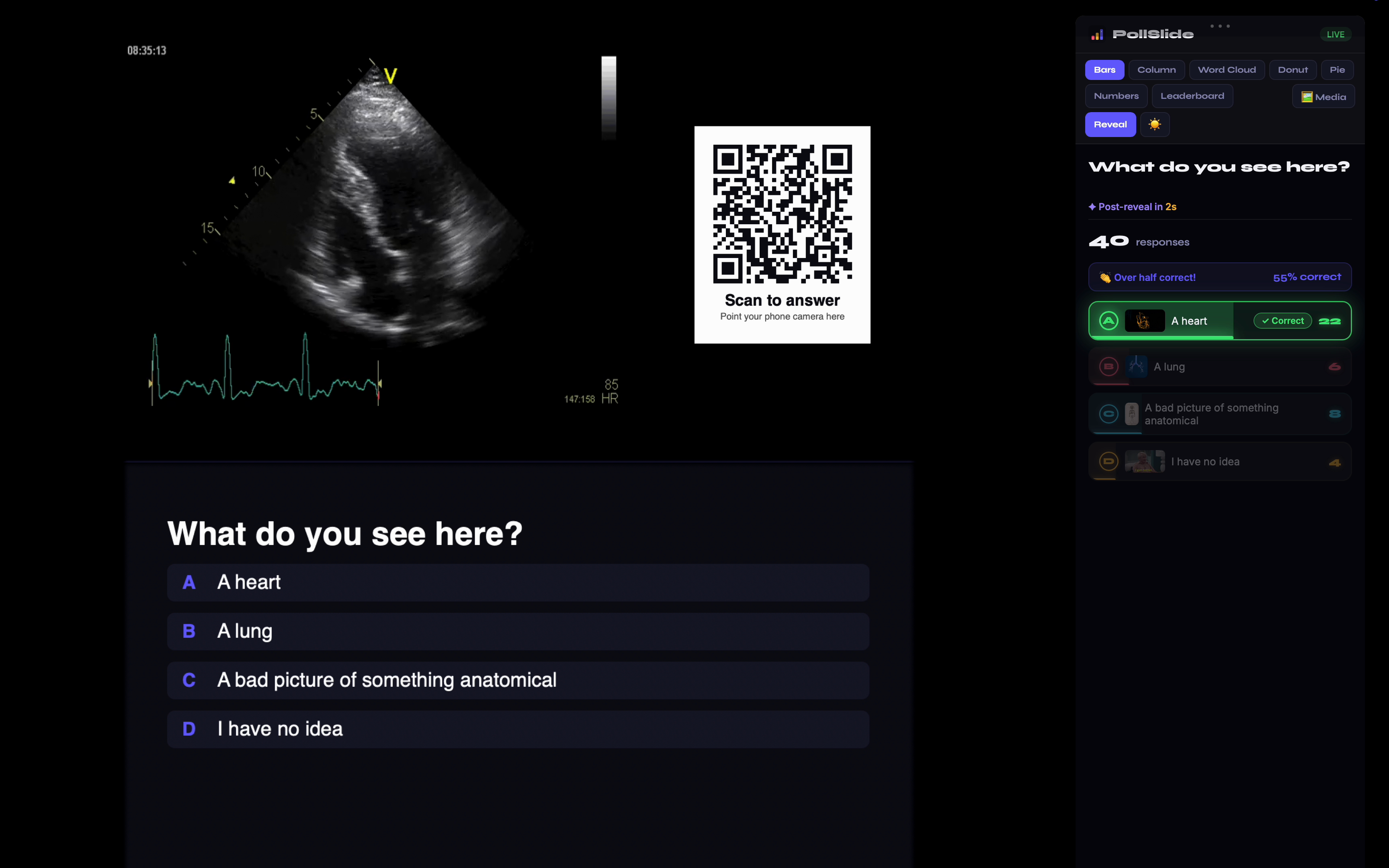
🔗 Set up the Mac Companion — step by step
Follow these eight steps once and you're set for every presentation. It takes about five minutes. Requirements: a Mac on macOS 14 (Sonoma) or later — it's free.
1 Download it
In your browser, go to pollslide.com/download and press the Download for Mac button. A file called PollSlideCompanion.dmg lands in your Downloads. It's signed & notarized by Apple.
2 Open the disk image
In your Downloads folder, double-click PollSlideCompanion.dmg. A little install window opens.
3 Drag it into Applications
In the window that opens, drag the PollSlide Companion icon onto the Applications folder beside it.
⚠ Don't skip this4 Open it the first time
Open the Applications folder and double-click PollSlide Companion. macOS asks once whether you're sure — click Open. A small bar-chart icon (three vertical bars) then appears in the menu bar at the top right of your screen — that's it running. Nothing else opens yet; you'll bring up its window yourself in step 6.
5 Get your code — in your browser
Sign in at app.pollslide.com/presenter. Click your email address at the top right, then choose 🔗 Connect Mac App. You get a 6-character code — it expires in 10 minutes.
6 Type the code on your Mac
Go back to your Mac. Nothing opens on its own — in the menu bar at the top right of your screen, click the bar-chart icon, then “Disconnect Account (Re-pair)”. That opens the “Connect to PollSlide” window. Click the “Enter code” box, type the 6 characters and click “Connect”. When it says “Connected!”, you're linked.
⚠ This is where the code goes7 Turn on auto-show
Auto-show pops your results up whenever your QR is on screen. It needs the Screen Recording permission — that's how the app spots the QR. Nothing is recorded, saved, or sent anywhere.
⚠ Needed for auto-show8 Place the window, then do a dry run
Present your slides as usual — the results window pops up on its own whenever your QR is on screen, and hides as soon as the QR is gone. Show or hide it yourself anytime with Control-Option-Y.
To reveal the answer from the keyboard, press Control-Option-R — the same as clicking Reveal. Needs app version 1.3.6 or later.
If it doesn't connect — or doesn't pop up
“This code has expired. Generate a new one.”
Codes last 10 minutes and work once. Get a new one the same way — your email address at the top right, then Connect Mac App — and type it in straight away.
“Invalid code. Check it and try again.”
Retype all 6 characters carefully. Codes never contain the look-alikes 0, O, 1 or I. If it still fails, get a fresh code.
“Connection error. Check your internet.”
Your Mac has to be online to connect. Check your Wi-Fi and try again — the same code works until its 10 minutes are up.
I can't find the window to type the code
In the menu bar at the top right of your screen, click the bar-chart icon → “Disconnect Account (Re-pair)”. No icon there? Open PollSlide Companion from your Applications folder.
The results never pop up
Check three things: the app is in your Applications folder (not Downloads or the disk image); Screen Recording is ON for PollSlide Companion and you quit and reopened the app afterwards; and the menu reads “■ Stop Auto-Show (QR detect)”.
The app says it's running from a temporary location
It was opened from Downloads or the disk image, so Screen Recording can never stick. Quit it, drag PollSlide Companion into Applications, and open it from there.
The window covers the QR
Your audience can't scan a QR the window is sitting on. Drag the window by its top bar, or move the QR to a corner of the slide — and test before you present.
Switching to another PollSlide account
In the menu bar at the top right of your screen, click the bar-chart icon → “Disconnect Account (Re-pair)”. The connect window comes back: get a code while signed in to the other account and type it in.
🧩 Poll · Survey · Quiz · Study · Present · Loop
One engine, six products. Switch from the product menu in the top-left of your dashboard.
🗳️ Poll
Quick opinion checks. Instant bars, columns, donuts, pies, or word clouds — no right answer needed.
📋 Survey
Multi-question forms your audience completes at their own pace. Great for feedback and data collection.
🏆 Quiz
Right/wrong answers, timers, scoring, leaderboards and podiums. Perfect for classrooms and trivia.
📚 Study
Flashcard sets with spaced repetition — front/back cards learners review on their own.
🎬 PresentSlide
The studio for a whole talk: import your slides (a PDF or images — Keynote and PowerPoint export to PDF in two clicks), weave in your polls, pick a theme, and present content and live results together full-screen.
🔁 LoopSlide
Questions that loop on a TV at a bar, an event or a lobby, with live leaderboards and sponsor cards between rounds. See LoopSlide.
💳 Plans & billing
Start free, upgrade only when you need more. One plan covers all six products: Poll, Survey, Quiz, Study, Present and Loop.
🆓 Free
Keep a few presentations, host small audiences, and get a monthly Polly AI allowance. Perfect for trying everything out.
⭐ Pro
Unlimited presentations, much larger audiences, and a bigger Polly AI allowance. For regular presenters, teachers and creators.
👥 Team
Everything in Pro plus a shared workspace, member seats and centralised billing. For classrooms, departments and companies.
🎨 White Label
Your own branding on the audience experience. For agencies and organisations that present under their own name.
- Open your account menu → See plans to compare, or Upgrade PollSlide to pick one.
- Checkout is handled securely by Stripe — PollSlide never stores your card details.
- Manage or cancel any time: your avatar menu → “⚙️ Account settings” → “💳 Manage billing & invoices”, which opens your secure billing portal.
- Changed your mind? Every paid plan is covered by our 14-day money-back guarantee.
⚙️ Your account: password, email & data
Change your password or email address, download your data, or delete your account — from ⚙️ Account settings in the avatar menu.
- Password: Account settings → enter your current password and the new one → “Change password”. Forgotten it? Use “Forgot password?” on the sign-in screen.
- Email address: enter the new address and your password, then click the link we send to the new inbox. Everything else stays the same.
- Signed in with Google? Your password and email are managed by Google. Email [email protected] and we can move your presentations to a new account.
The video, step-by-step guide and common questions are on the account settings page.
👥 Teams & workspaces
A Team plan puts everyone in your group on the same plan, on one bill.
- The person who buys the Team plan is the team's owner. Team admin opens by itself at their first sign-in, and is always in the avatar menu at the top right.
- Invite people by email as a member or an admin. They join automatically the next time they sign in with that address, on the team's plan.
- Admins can invite and remove people. Only the owner can turn an admin back into a member. Members can leave on their own at any time.
- One bill covers every seat. If the team plan ends, members keep all their work and go back to the Free plan.
🔒 Your data & privacy
Your presentations and responses are yours. Here's how PollSlide handles them.
📥 Export any time
Download every response as CSV from the Report screen. Your data is never locked in.
🗑️ Delete on request
Remove a session, or your whole account and all its data, from your account settings — permanently.
🙈 No audience tracking
Participants just scan and answer — no app, no account, no advertising trackers.
🖥️ Local screen reading
The Mac Companion reads your screen only to spot the QR code. Nothing is recorded, saved, or sent.
🛠️ Troubleshooting
The quick fixes for the handful of things that trip people up.
I have the code — where do I type it on my Mac?
The “Connect to PollSlide” window doesn't open on its own — in the menu bar at the top right of your screen, click the bar-chart icon, then “Disconnect Account (Re-pair)”. That's where the code goes. Step 6 shows it with a picture ↓
The companion isn't popping up on my QR slide
Check three things: the app is in your Applications folder (not Downloads or the disk image); Screen Recording is ON for PollSlide Companion and you quit and reopened the app afterwards; and the menu reads “■ Stop Auto-Show (QR detect)”. If it reads “▶ Start Auto-Show (QR detect)”, click it. Make sure you're on the latest version from pollslide.com/download.
My audience can't join or results aren't updating
PollSlide needs an internet connection on both your device and your audience's. Check you're online, then have them re-scan the QR or go to pollslide.com/join and enter the code. Refresh the presenter page if a session looks stuck.
The QR code won't scan
Make it bigger on your slide and keep good contrast (dark on light). Most phone cameras scan automatically — if not, any QR app works, or use the pollslide.com/join + code option instead.
Polly AI is slow or didn't generate
Try again — the first request after a while can be slower. If you've hit your monthly Polly allowance, you'll be told; you can still add questions by hand or upgrade for more. See Plans & billing.
The results window opened on the wrong screen
Drag it by its top bar onto the display your slides are on — it stays there for the rest of your talk. With a projector or second display, always do a quick dry run first so you can position it once.
The window covers the QR
Your audience can't scan a QR the window is sitting on. Drag the window by its top bar, or move the QR to a corner of the slide — and test before you present.
My study streak reset even though I studied
The streak counts calendar days and only banks when you finish a session, so closing the tab halfway through won't count. It's also per-device (it lives in that browser), so studying on your phone and laptop keeps two separate streaks. Note it's now a single streak across all your sets — studying any set keeps it alive.
Study progress vanished / cards reset to Learning
Study progress is stored in that browser, not your account — so clearing site data, using private browsing, or switching device starts fresh. The cards themselves are safe; only the schedule and streak are local.
I picked a game mode but scores look normal
Check the mode actually took: the picker appears each time you press Present, and whatever is selected there is what runs. If people joined before you switched modes, ask them to reload the answer page. Also note Classic and the other modes score the same on a single question — the differences build up across a round. See Game modes.
Someone was knocked out in Survival but wants back in
Survival is deliberately final within a round — that's what creates the tension. To give everyone a fresh start, finish the round and start the next one (or reset the tally from the presenter), and they'll be back in from the next question.
The team screen didn't appear for my audience
Open the “⋯” menu at the top and check it reads “👥 Teams: On” for that presentation — the setting is per presentation, not global. Anyone who joined before you switched it on will see the team screen the next time they answer a question. See Team play.
Someone joined the wrong team
They can pick again: ask them to close the answer page and re-scan the QR (or reopen the link). They'll get the team list again and their later answers count for the new team.
🎯 Suggest a follow-up says the co-pilot is unavailable
That means the AI service couldn't be reached right then — it's the safe fallback, not a broken session. Everything else (questions, results, reveal, leaderboards) carries on completely as normal. Try again in a moment, or check the status page.
My recap link doesn't work / says expired
Recap links are long and unguessable — make sure the whole link was copied, including the part after the #. Chat apps sometimes cut long links; paste it as plain text or use the Copy link button again from your Report. See Shareable session recap.
Still stuck?
Email [email protected] and check the status page to see if everything's running normally.
❓ FAQ
Does my audience need to install anything?
No. They just scan the QR code with their phone camera and answer in the browser.
Can I use PollSlide with Keynote, PowerPoint or a PDF?
Yes — any of them. Use Copy QR box for slide to paste the QR onto any slide, or run the Mac Companion to float live results over whatever's on your screen — Keynote, PowerPoint, a PDF, even a webpage. There's also a PowerPoint add-in.
How do I show results on the projector?
Use Present mode in the browser, or run the Mac Companion app for a floating results window that stays on top of your slides.
What's the difference between Reveal and Post-reveal?
Reveal locks responses and highlights the correct answer. Post-reveal is what shows next — a leaderboard, podium, scorecard, or explainer card.
Why does the companion ask for Screen Recording?
Only to read the QR code on your current slide so it shows the right poll automatically. Nothing is captured or sent.
Can I run PollSlide on a TV at a bar or event with nobody presenting?
Yes — that's LoopSlide. Your questions loop on the screen on their own, people play on their phones and compete on live leaderboards, and your offers can play between rounds. See LoopSlide.
Can I use PollSlide to study something myself?
Yes. Open a study set and click 📚 Study now — it opens your own cards with spaced repetition, a daily streak and four study modes. If what you have is a quiz or poll, click 📚 Study this deck to turn it into flashcards first. See Study it yourself.
Do the study games actually help me learn, or are they just fun?
Both. Every study mode uses the same cards and feeds the same spaced-repetition scheduler as normal review — getting one right pushes it further into the future, getting it wrong brings it back sooner. Playing Beat the Clock is real revision, not a break from it.
Can I make the quiz more of a game?
Yes — when you hit Present, pick a game mode. Speed round rewards fast answers, Streak builds a multiplier, Survival knocks players out one wrong answer at a time, and Wager lets people bet on themselves. Classic stays exactly as it always was. See Game modes.
Do game modes change my questions?
No. The questions, options, timers, reveal, translations and reports are all identical — a mode only changes how points are counted and what the big screen celebrates. You can switch modes between rounds.
Can people answer in teams, like a pub quiz?
Yes — switch on 👥 Teams for that presentation and everyone picks or creates a team when they join. Team score is the average of its members, so bigger teams don't win automatically. See Team play.
Does the AI cost extra to use during a session?
No. AI Insights and the Live Co-pilot are included in your plan and aren't charged per use — they run on PollSlide's own AI first. Only generating questions with Polly counts against your monthly allowance. See Plans & billing.
What happens to my session if the AI is down?
Nothing important. Questions, answers, live results, reveal, leaderboards, reports and CSV export are all completely independent of AI. Only the optional extras (Co-pilot suggestions, Insights, the recap's summary line) pause, and they say so clearly.
Can I send people the results afterwards?
Yes — open your Report and click 🎁 Share recap to get a link anyone can open on their phone, with the winner and highlights. See Shareable session recap.
Is there a free plan?
Yes. The Free plan lets you build and run real polls, surveys, quizzes and study sets, with a monthly Polly AI allowance — no credit card required. Upgrade only when you need unlimited presentations, larger audiences, or more Polly. See Plans & billing.
How many people can join a poll?
It depends on your plan — the Free plan is capped for smaller rooms, and paid plans raise the limit substantially. The pricing page shows the current participant caps for each plan.
Do I need to download anything?
No download is required to build or present — everything runs in your browser at app.pollslide.com. The Mac Companion is an optional free app that floats live results over your slides; your audience never installs anything either.
Can I use PollSlide in another language?
Yes. The interface and this site auto-detect your browser language (11 languages, from English and Spanish to Arabic and Hindi), and your audience's answer screen is translated too. You can also switch language manually.
Can I present online over Zoom, Meet or Teams?
Absolutely. Share your screen as usual and present from the PollSlide app, or run the Mac Companion so live results float over whatever you're screen-sharing. Remote audiences scan the on-screen QR or join at pollslide.com/join.
Who owns the data and responses?
You do. Export everything to CSV any time, and delete a session or your entire account whenever you like. See Your data & privacy.
How do I cancel, and is there a refund?
Manage or cancel any time: your avatar menu → “⚙️ Account settings” → “💳 Manage billing & invoices”. Every paid plan is covered by a 14-day money-back guarantee — just email [email protected].
Is my payment secure?
Yes. All payments are processed by Stripe; PollSlide never sees or stores your card number.